RobOS Desktop — A Desktop You Actually Own
A fully programmable taskbar, a library of 70+ shell skills, and an AI prompt that wires them together. Describe what you want in plain English and watch it happen — with a git snapshot before every change so you can roll back instantly.
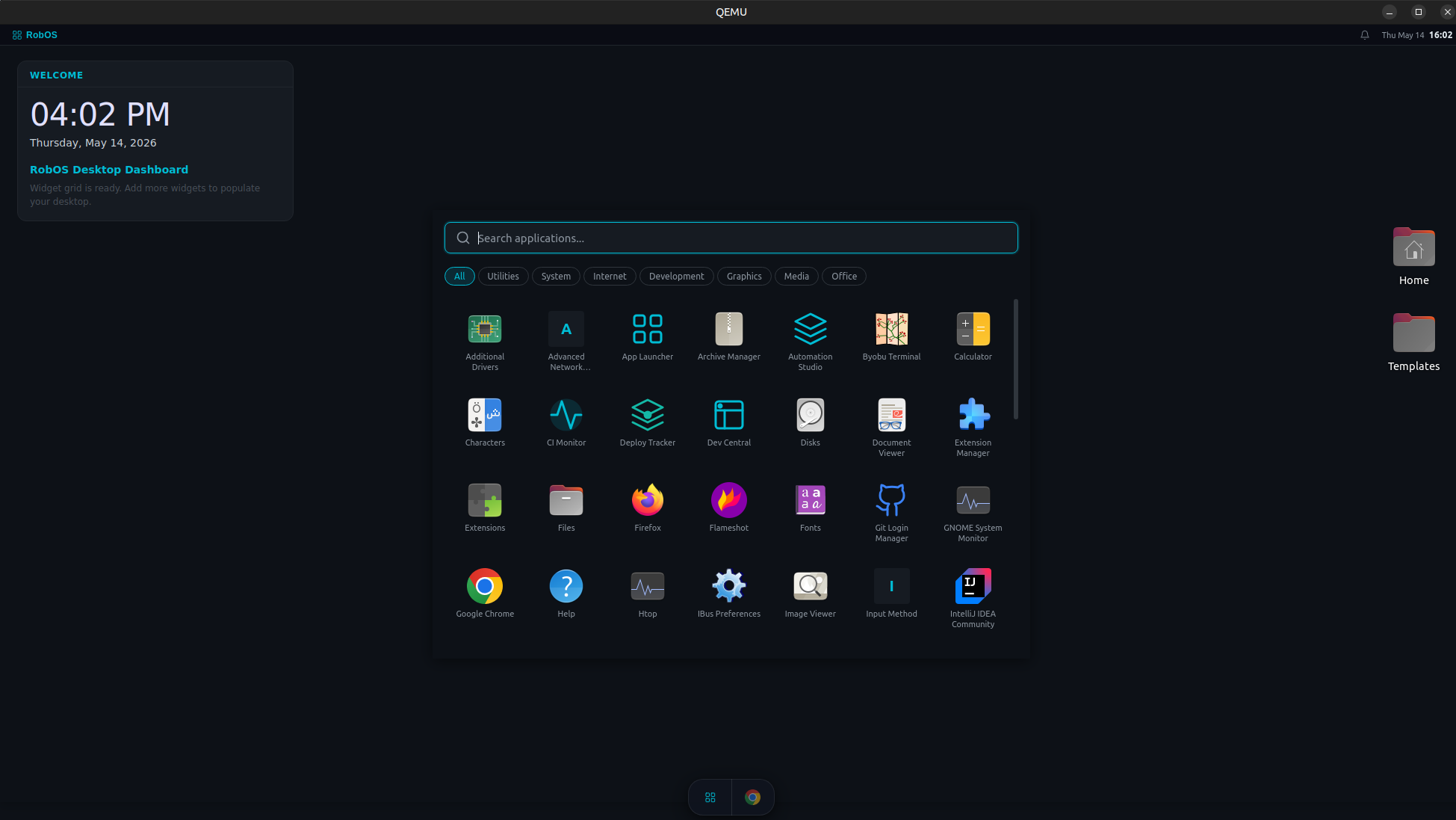
Stock Ubuntu/GNOME reshaped into a Mac-style dark desktop — entirely through RobOS AI Prompt and Skills
Table of contents
- The Three Pieces
- What You Can Do With a Single Prompt
- Desktop Skill Pack Reference
- Safety & Snapshots
- Community Skill Packs
The Three Pieces
RobOS’s customizable desktop is three apps working as one unified layer:
🖥️ RobOS Desktop
A slim 52px taskbar shell at the bottom of the screen. Shows every open window with its icon, a launcher button, system clock, and tray. Unlike GNOME's locked panel, every aspect is programmable — reposition it, change the clock format, pin any app, inject custom Electron widgets — all through prompts.
What You Can Do With a Single Prompt
Move the Taskbar
"Move the taskbar to the top of the screen"
"Make the taskbar taller — 64px"
"Auto-hide the taskbar when I'm not using it"
The Desktop skill pack runs the underlying gsettings and Electron config commands, restarts the shell if needed, and shows you a before/after diff.
Change the Clock Format
"Switch the clock to 24-hour format"
"Show the date next to the clock"
"Hide the clock entirely — I have a watch"
"Show seconds in the clock"
Skills map directly to gsettings org.gnome.desktop.interface clock-format and related keys — but you never have to know that. Type what you want; the AI Prompt picks the right skill, fills in the parameters, and executes.
Pin a Custom Electron App to the Taskbar
"Add my Pomodoro timer app to the taskbar"
"Pin the Dev Central app so it always shows in the taskbar"
"Remove the Work Journal from my startup apps"
The taskbar-pin skill writes the .desktop autostart entry, registers it with the RobOS Desktop’s pinned app list, and optionally launches it immediately.
Build and Inject a New App
"Build me a system monitor widget that shows CPU and RAM in the taskbar"
"Create a Pomodoro timer with a circular progress ring and a 25/5 interval"
"Make a sticky notes app that lives in the top-right corner of my desktop"
The AI Prompt scaffolds a complete Electron app — main.js, preload.js, renderer HTML/CSS/JS, icon.svg, .desktop file — and registers it in the App Launcher and taskbar. Iterate with follow-up prompts.
Keyboard Shortcuts
"Create a shortcut Super+T to open Tilix"
"Map Ctrl+Shift+G to open Git Projects"
"List all my custom keyboard shortcuts"
Desktop Widgets
"Add a CPU usage bar to the top-right corner of the desktop"
"Show my open PR count as a desktop widget"
"Add a weather widget — I'm in Chicago"
Full Example Session
Here’s a real session in RobOS AI Prompt using the Desktop skill pack:
User:  Move the clock to the left, switch to 24-hour format, and increase
       the taskbar height to 60px.

AI:    I'll apply 3 desktop changes. Taking a snapshot first...

       ✅ Step 1 — move-clock-left
          gsettings set org.gnome.shell.extensions.dash-to-panel
            clock-panel-position 'LEFT'
          → Clock moved to left side of taskbar.

       ✅ Step 2 — clock-24h
          gsettings set org.gnome.desktop.interface clock-format '24h'
          → Clock now shows 24-hour time.

       ✅ Step 3 — taskbar-height
          Updated RobOS Desktop config: TASKBAR_H = 60
          Restarting robos-desktop...
          → Taskbar height set to 60px.

       Snapshot saved: abc1234 — "before clock/taskbar changes"
       Run /restore abc1234 to undo all three changes at once.
Desktop Skill Pack Reference
The built-in Desktop skill category covers every common customization. Browse and run them directly in the AI Prompt sidebar or install community extensions via the Skills Manager.
| Skill | What it does |
|---|---|
move-clock | Reposition the clock: left, center, right, hide |
clock-format | Switch between 12h and 24h |
clock-show-date | Toggle the date display next to the clock |
clock-show-seconds | Toggle seconds in the clock |
taskbar-height | Set taskbar height in pixels |
taskbar-autohide | Enable/disable taskbar auto-hide |
taskbar-pin-app | Pin a $APP_ID to the taskbar |
taskbar-unpin-app | Unpin a $APP_ID from the taskbar |
taskbar-add-custom-app | Register a custom Electron app $APP_PATH in the taskbar |
startup-add | Add $APP_ID to startup applications |
startup-remove | Remove $APP_ID from startup |
keyboard-shortcut | Bind $KEYS to launch $COMMAND |
theme-accent | Change the desktop accent color to $HEX_COLOR |
theme-font-size | Set the system font size to $SIZE_PX |
window-buttons | Move window controls to left or right |
inject-css | Apply $CSS to GNOME via gtk.css override |
snapshot-save | Save a named desktop snapshot before experimenting |
restore-last | Undo the most recent desktop change |
restore-hash | Restore desktop state to snapshot $HASH |
Safety & Snapshots
Every destructive skill automatically takes a git snapshot before executing:
~/.config/robos/desktop-snapshots/   ← git repo
  ├── dconf.dump          ← full GNOME settings dump
  ├── gtk-3.0.css         ← GTK overrides
  ├── gtk-4.0.css
  ├── autostart/          ← ~/.config/autostart/*.desktop
  └── robos-settings.json ← RobOS Desktop config
Rollback is one prompt away:
"Undo the last desktop change"
"Restore my desktop to how it looked this morning"
"Roll back to snapshot abc1234"
Community Skill Packs
The Skills Manager can install any GitHub repository of shell skills as a custom pack. Community packs extend what AI Prompt can do:
- gnome-desktop-skills — advanced GNOME extension management, Wayland tweaks, HiDPI scaling
- docker-devops-skills — container lifecycle, log tailing, image pruning
- git-workflow-skills — branch cleanup, stash management, bisect helpers
- security-audit-skills — SUID checks, listening services, SSH key audits
Paste any GitHub URL in the Skills Manager → Add Pack panel, preview the skills, and install with one click. Installed packs appear immediately in the AI Prompt sidebar.